
Out of the box, a Minecraft server knows two kinds of player: everyone, and operators. Give a helper the power to kick a griefer and you have to make them an operator, which also hands them /ban, /op and /stop. A permission plugin fixes that. It lets you decide, command by command, who can do what.
This guide covers why every server with more than a few players needs one, how the main plugins compare in November 2026, and how to set up LuckPerms, the plugin most servers use, in about ten minutes.
Why operator isn't enough
Operator status comes in four levels, set by op-permission-level in server.properties. Level 3 lets a player kick and ban, but also op other players; level 4, the default, adds /stop. Every operator gets the same level, and it says nothing useful about commands added by plugins.
That causes real problems:
- Too much power. A moderator who can ban can also op their friends, change the world's game rules or stop the server. One compromised account, or one bad day, and your server is gone.
- No ranks. Players expect to see who's staff, who's a VIP and who's new. Without groups there's nothing to hang a rank or a chat prefix on.
- Plugins can't be split up. Almost every plugin checks a permission before it runs a command:
essentials.homefor/home,worldedit.wandfor the WorldEdit wand. Without a permission plugin, players either get all of those or none. - No temporary access. A trial moderator, a weekend event host or a paid rank that lasts 30 days all need permissions that expire on their own.
How permissions work
A few ideas are the same in every permission plugin, so they're worth learning once:
- Permission node: the name of one thing a player can do, like
minecraft.command.kickoressentials.home. Plugins list their nodes in their documentation. - Group: a named set of nodes, such as
helperorvip. You give nodes to groups, then put players in groups, instead of managing every player one by one. - Inheritance: a group can include another group's nodes. If
moderatorinherits fromhelper, moderators can do everything helpers can, plus their own extras. - Weight: which group wins when a player is in several and their settings disagree, for example which prefix shows in chat. The higher weight wins.
- Track: an ordered ladder of groups, like helper, moderator, admin, used to promote and demote players one step at a time.
The main permission plugins in 2026
| Plugin | Price | Latest version | Status |
|---|---|---|---|
| LuckPerms | Free | 5.5.71 (August 2026) | Actively maintained |
| UltraPermissions | €9.98 | 5.6.8 (February 2026) | Updated this year |
| PowerRanks | Free | 1.10.10 (August 2024) | Last updated for 1.21.1 |
| GroupManager | Free | 3.2 | Legacy |
| PermissionsEx | Free | — | Archived (2024) |
LuckPerms
LuckPerms is the standard, with more than nine million downloads on SpigotMC alone. It's free and open source (MIT), runs on Paper, Spigot and Folia as well as Velocity, BungeeCord, Fabric, Forge and NeoForge, and supports Minecraft 26.3. It has every feature in the list above, a web editor so you don't have to memorise commands, and can share one database across a whole network of servers. Unless you have a specific reason not to, use it.
UltraPermissions
UltraPermissions is a paid plugin built around an in-game GUI: you can manage groups and players from menus instead of typing commands, though commands work too. Some owners prefer that, but you're paying for an interface, and LuckPerms' web editor covers the same ground for free.
PowerRanks
PowerRanks is a simpler, free plugin focused on ranks with chat prefixes and name colours. It's easy to pick up, but its last update targets Minecraft 1.21.1, so check that it works on your version before relying on it.
GroupManager and PermissionsEx
These two ran most servers ten years ago, and you'll still see them in old tutorials. GroupManager is no longer part of EssentialsX, which now recommends LuckPerms, and PermissionsEx was archived by its developers in 2024 without its 2.0 release ever shipping. Avoid both on a new server, and plan to rebuild your groups in LuckPerms if an old server still runs one.
What about Vault?
Vault isn't a permission plugin. It's a bridge that lets other plugins read your groups, prefixes and economy without knowing which permission plugin you use. LuckPerms works without it, but install Vault too if another plugin asks for it: EssentialsX, for example, needs Vault to show LuckPerms prefixes in chat.
Getting started with LuckPerms
The steps below were run on a Paper 26.3 server with LuckPerms 5.5.71. Commands typed in the server console have no slash; in game, add a / in front (/lp creategroup helper).
1. Install LuckPerms
On SpaceMine, open your server's Plugins tab, find LuckPerms (it's the first result under Most downloaded) and click Install, then restart the server. Anywhere else, download the jar for your server software from luckperms.net/download, put it in the plugins folder and restart.
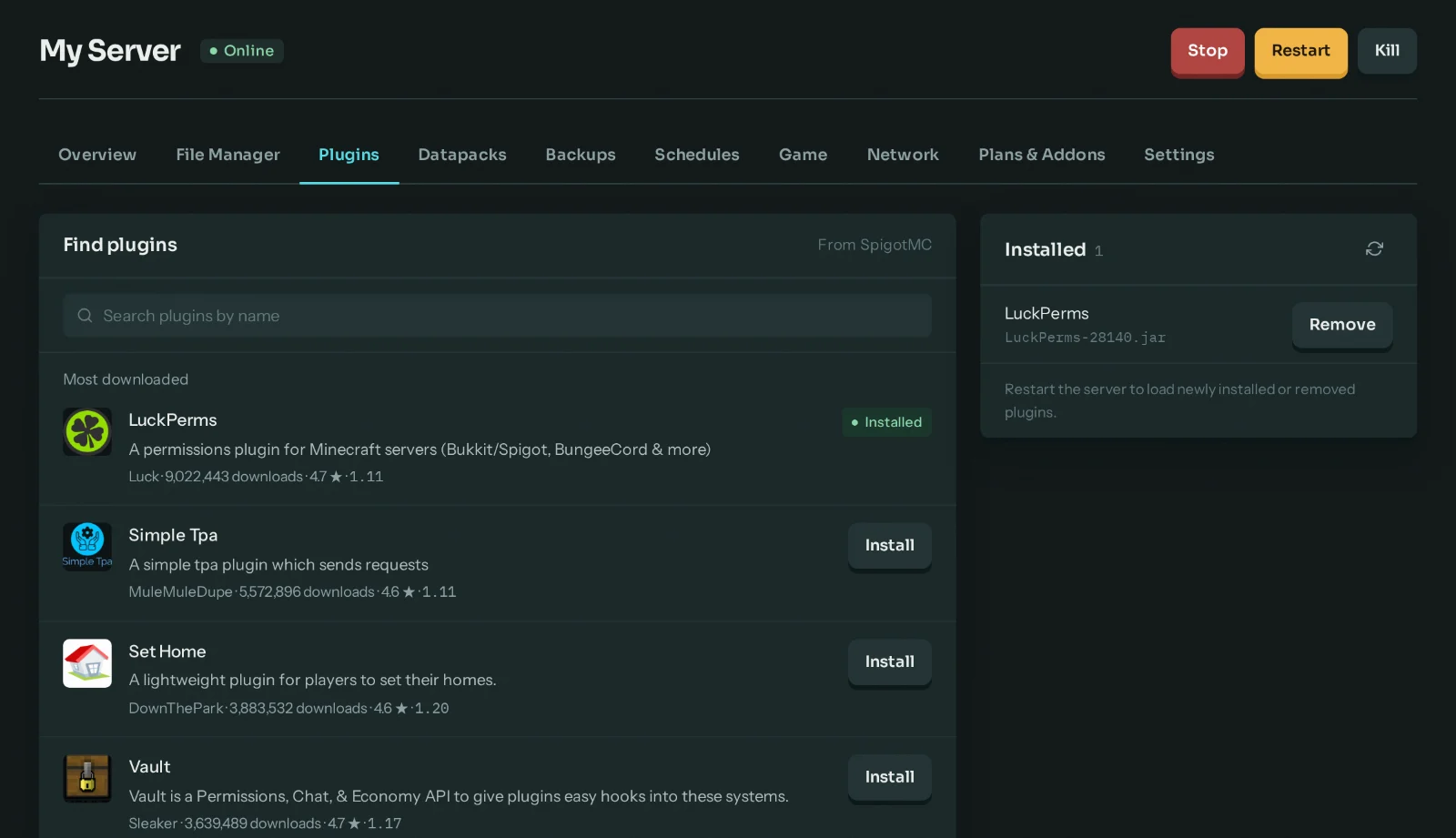
The console should show [LuckPerms] Successfully enabled. By default LuckPerms keeps its data in a local H2 database inside plugins/LuckPerms, which is fine for a single server.
2. Create your groups
Every player is already in a group called default. Create one group per role, then chain them together so each inherits from the one below:
lp creategroup helper
lp creategroup moderator
lp creategroup admin
lp group helper parent add default
lp group moderator parent add helper
lp group admin parent add moderator
3. Give each group its permissions
Add only what each role needs. Here helpers can kick, moderators can also ban and unban, and admins can also change game mode:
lp group helper permission set minecraft.command.kick true
lp group moderator permission set minecraft.command.ban true
lp group moderator permission set minecraft.command.pardon true
lp group admin permission set minecraft.command.gamemode true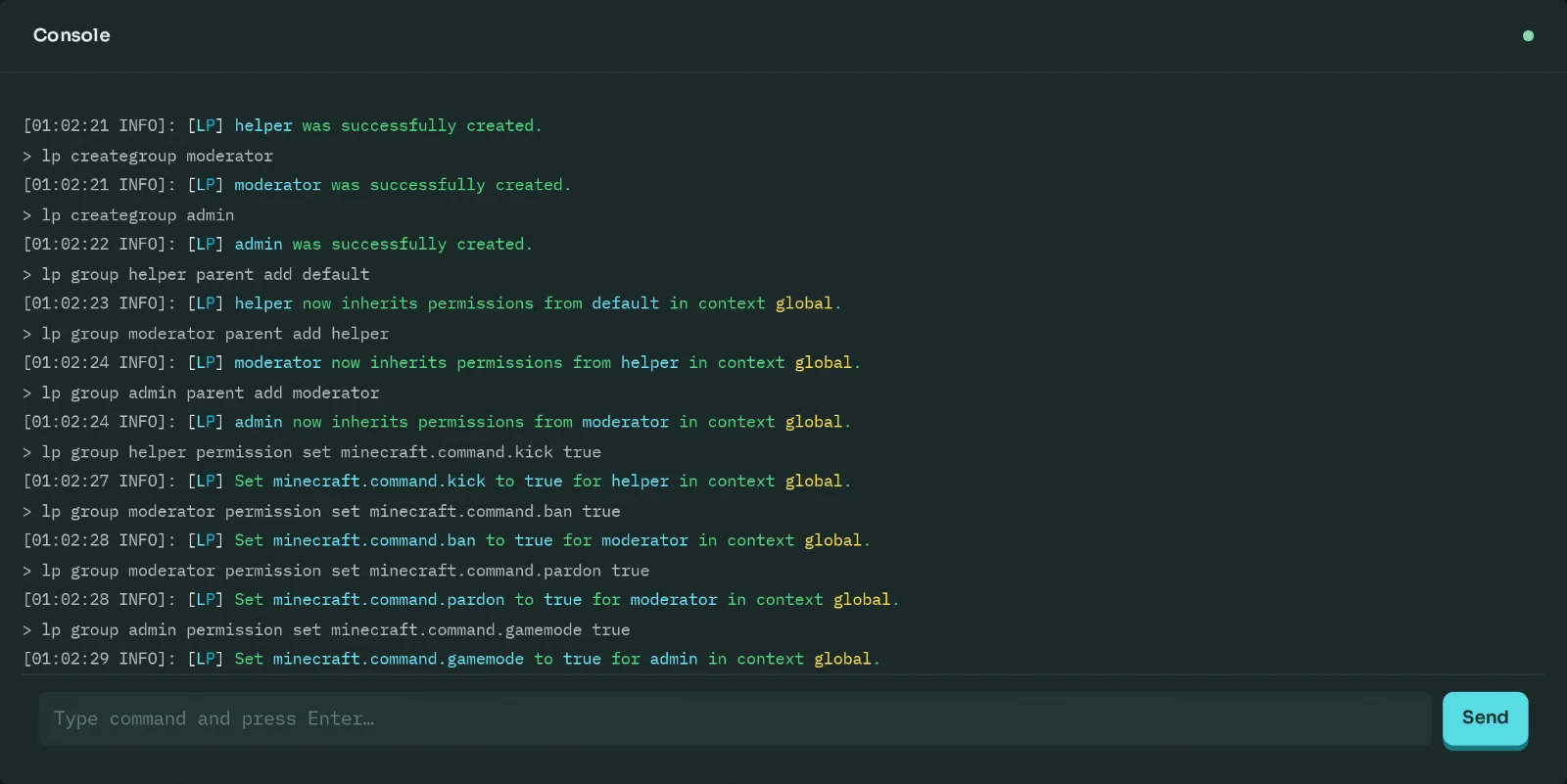
Not sure which node a command uses? Run lp verbose on, use the command in game, and LuckPerms shows every permission it checked. lp verbose off stops it.
4. Add weights and prefixes
Weights decide which group wins, and prefixes give each rank a tag in chat. The & codes are Minecraft colours (&b aqua, &9 blue, &c red):
lp group helper setweight 10
lp group moderator setweight 20
lp group admin setweight 30
lp group helper meta setprefix "&b[Helper] "
lp group moderator meta setprefix "&9[Mod] "
lp group admin meta setprefix "&c[Admin] "
LuckPerms stores the prefix; a chat plugin displays it. EssentialsX Chat with Vault is the most common pairing.
5. Create a track and add players
A track lets you promote staff one step at a time:
lp createtrack staff
lp track staff append helper
lp track staff append moderator
lp track staff append admin
Then put a player in a group, or move them up and down the track (replace Alex with their username):
lp user Alex parent add helper
lp user Alex promote staff
lp user Alex demote staff
For access that should end on its own, add the duration: lp user Alex parent addtemp moderator 7d makes Alex a moderator for seven days.
6. Check your setup
lp group moderator info shows a group's weight, parents and prefix, and lp track staff info shows the promotion path:
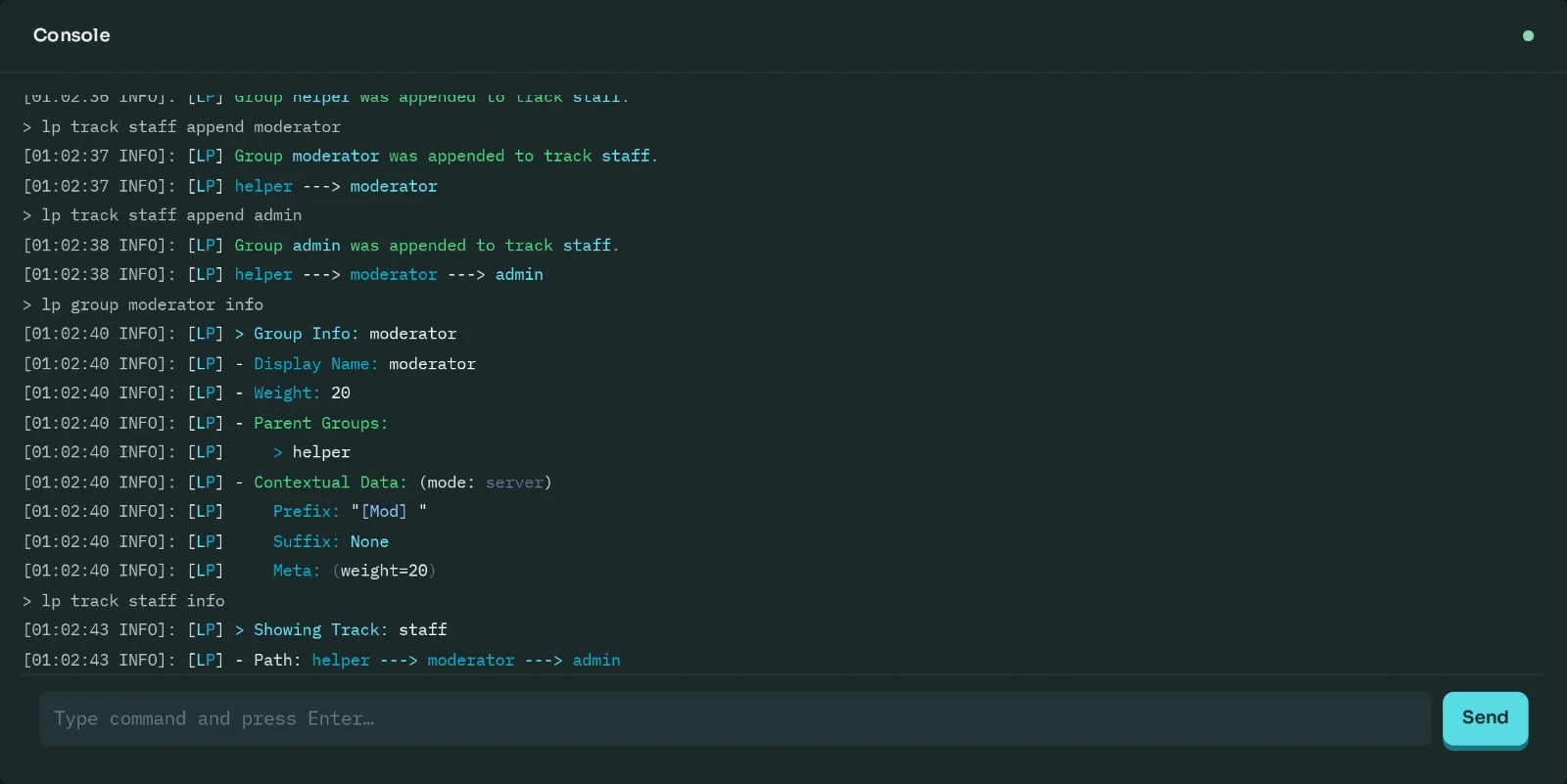
To check a single player, lp user Alex permission check minecraft.command.ban tells you whether they have a node and which group gave it to them.
7. Use the web editor
Typing commands gets slow once you have more than a handful of groups. Run lp editor and LuckPerms prints a link to its web editor, with all your groups, tracks and players:
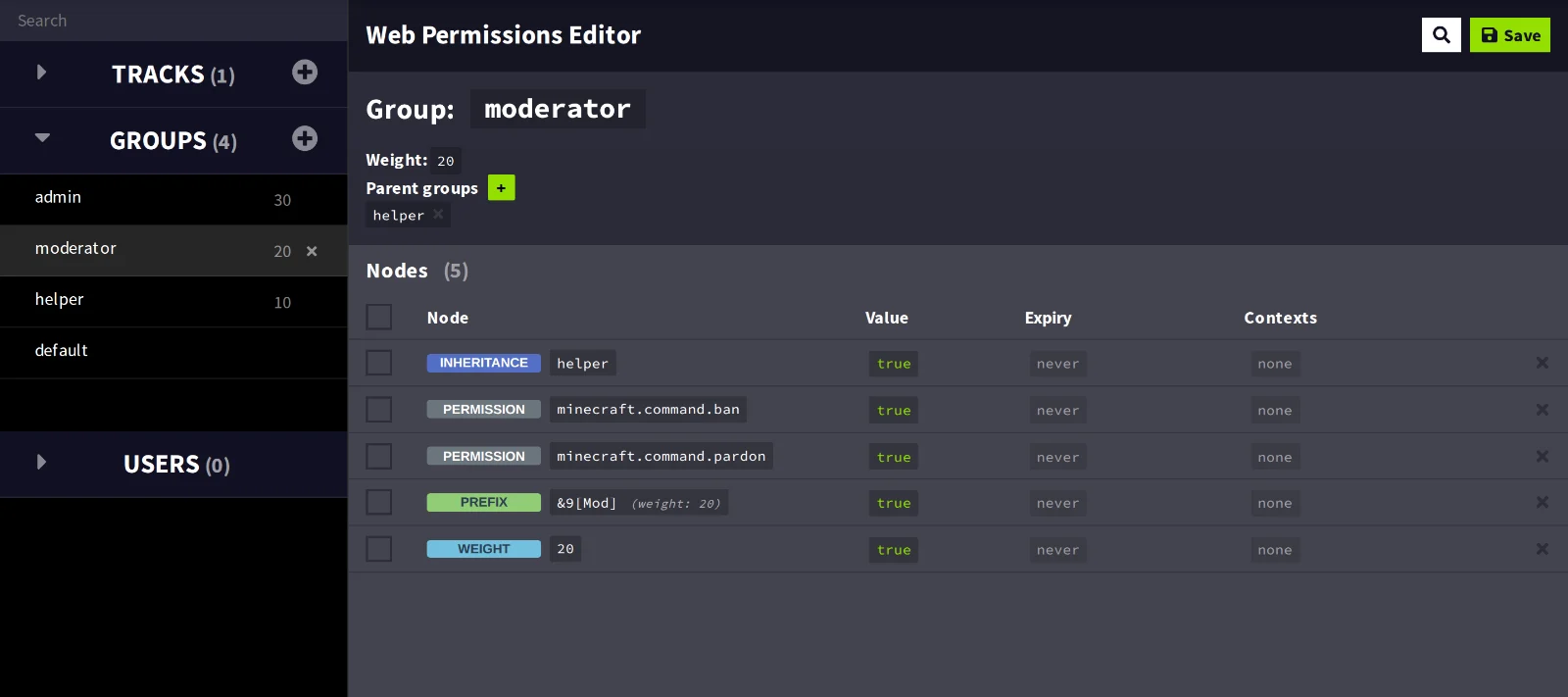
Add or remove nodes, then click Save. The first time, the editor asks you to run /lp trusteditor with a code in game; after that, saved changes apply to your server straight away.
Tips for a safe setup
- Keep operator for yourself. Once your groups work, de-op your staff (
deop <name>) so permissions come only from LuckPerms. - Never give
*. The wildcard grants every node, including ones from plugins you install later. Give admins what they need instead. - Start small. It's easier to add a node when someone asks than to find out which of fifty nodes let a moderator break something.
- Back up before big changes. LuckPerms' data lives in
plugins/LuckPerms, so take a backup of the server first; on SpaceMine that's one click in the Backups tab. - Use one database for a network. If you run several servers behind Velocity or BungeeCord, point every LuckPerms at the same MySQL or MariaDB database so ranks follow players between servers.
The full command list is in the LuckPerms wiki.